
Report - What is DNS?
This is the first of a long series of formal tutorials / reports on many different IT related topics.
This weeks tutorial is on DNS, how it works, and why it is an important concept in internet communications. Enjoy:
DNS is an essential part of the operation of the internet, as it provides a mapping between the mnemonic name of a domain on the internet and its corresponding, machine-readable numeric IP address. The domain name space consists of domain names organised into a tree-like structure. Within this tree are top level domains (

This tree structure divides into areas called zones. Each zone has a number of nodes, which have an associated Resource Record (RR), which describes the IP address, name server etc. The nodes within this zone are administered by an authoritative DNS name server. This server is responsible for maintaining all of the RR’s within its zone. The DNS name server will maintain the list of RR’s in a DNS distributed database. Each organisation is responsible for managing its own set of domain names.
When a domain name is entered, a Resolver (a program designed to interrogate the database for RR’s) queries the name server by sending a DNS request, to which the name server responds with the relevant IP address. If the name server does not have a record of the address, it will query other name servers, even the root name server. When it receives a response, it will send it to the originating computer, and may check the RR time to live field, and store it in the cache for that period of time. Address resolution works as follows: The local DNS server has a list of addresses of all the Root servers on the internet. The address (eg csu.edu.au) is read from right to left, and the local DNS server queries each corresponding DNS server for each domain in the address to find the address of the next DNS server. This continues until the final address is returned by the last DNS server.
An example of the setup of DNS tree structures and the function of DNS servers is shown for
he


Troubleshooting Network Issues - Part 1
In my line of work there are hundreds of problems yearly with network connectivity losses. As such, I have developed an informal list of tools and tricks to diagnose and fix network problems. Until now, this list has been stored safely in my head, but I would like to share with you the steps I go through to diagnose network connectivity issues. I try to make the steps systematic, by testing for the most common problems first, and then moving on to more specific issues.
Although this list is both for home and business networks, note that some of the items in this list cant be done for a home network.
This is a multi part series of tips, with this first one being an overview and showing you how to make sure you really do have a problem, and maybe (if your lucky) know where that problem lie. Subsequent parts will go into much more detail on the nitty gritty of network management and troubleshooting.
Before we start, from experience I can tell you that most network connectivity issues wont be caused by faulty cables (but some will). This is a common misconception. Unless a cable has been moved or put under some sort of strain, it wont become faulty all by itself.
Another quick message before I begin. When searching for network problems, it helps to understand exactly what happened to make the network connection fail, because you can bet your bottom dollar a similar issue will occur again, either on the same station or a different one.
A sure-fire way to understand network issues is to only change one thing at a time. I repeat, Change one thing, then test. I cant make this clear enough. Network diagnostics is naturally a trial and error process, and therefore experience and understanding is necessary to diagnose a problem faster.
1. Try to ping another computer. Preferably a server on your network, or a computer that you know is on and connected to the network. This proves or disproves there is a problem with the network connectivity. Use the following procedure to ping a computer.
Open the start menu, and select Run.
type cmd into the text box.
This will open the Command window. Type ping [servername] and hit enter.
An example of a ping command on my network: ping home1, where home1 is the name of the server I am trying to reach.
A successful ping should return something similar to the following:
pinging home1 [200.20.200.200] with 32 bytes of data:
Reply from 200.20.200.200: bytes=32 time<1ms ttl="">
Reply from 200.20.200.200: bytes=32 time<1ms ttl="">
Reply from 200.20.200.200: bytes=32 time<1ms ttl="">
Ping statistics for 200.20.200.200:Packets: Sent = 4, Recieved = 4, Lost = 0 (0% loss);
Approximate round trip time in Milli-seconds:
Minimum = 0ms, Maximum = 0ms, Average = 0ms 
Request timed out.
Request timed out.
Request timed out.
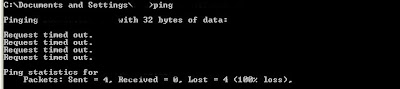
The above step will prove or disprove that there is a problem on the network. If there is, then continue:
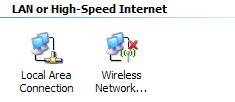 - Locate your current network connection, and see if it is connected. If there is a "network cable unplugged" error, then you have a problem somewhere with the cable.
Guide to email etiquette

There is a big difference between IM and email, but it seems to be shrinking for some reason. I cant count how many times I see "Hey wat up? Hows life wit U? Saw Jim the other day, and I was like WTF?!?" Thats IM talk, not email talk.
Email is now the prime medium for business communication. Nothing will beat a phone conversation for communicating effectively, but there are many more emails floating around than phone conversations.
However, this doesnt mean to structure your emails like a presentation, as they are in essence a communication and conversational tool. The key is knowing when to be formal, and when to be informal (but not too sloppy).
So the top tip today is to always type in correct language in email. It cant take that much more of your time or effort to do so, and those that dont know what WTF, GTG, ROFL, and LOL mean will thanks you for it.
Dont SHOUT!

In the computer world, using capitals in writing is considered shouting. Not only is it hard to read, it is also considered rude. The recipient gets the impression while reading that you are shouting at him or her for some reason.

One major problems with email is the lack of cues a person can use to determine the sender's intent. For example, in a phone conversation, the recipient can tell if a person is playing a joke by saying "you should tell the boss I said he is an ass" by the way they talk light heartedly and laugh, but in an email conversation, this may be interpreted as a seriou request or threat.
It is therefore imperative that you make your meaning and intent absolutely clear. If a message can be misunderstood, chances are it will, landing you in hot water.
This tip is not necessarily gospel, but in my personal opinion it is commonsense and courtesy to be wary of when to use formal signatures in email.
Formal signatures whould only be used in emails sent to external sources. Signatures are a handy way of conveying contact and qualification details. However, chances are one of your work collegues already knows everything about you, and doesnt give a rats about your qualifications.
So the best thing to do for internal emails is to leave the formal signatures out. Having a simple end to internal emails also gives the impression that it is a more personal message.
In regards to replying to emails, you should also never use formal signatures. This is common knowledge. If you sent the first message, your details will already be in the email, if you were sent the email first, they already have your details, dont spam them again.
I dont know why this is so hard for some people. The subject field is one of the most important pieces of information. Without it, a person does not know what the email contains. They can open it to see what it is about of course, but who wants more spammers knowing their email is active??
It also helps when categorising and sorting email. Those without a subject field can be hard to sort, or can take valuable time reading them again.
This is simply for the privacy of the recipients. If your email is to be sent to many people, you should use the Blind Carbon Copy field.
The BCC field is simpy a CC field, but is hidden from the view of the recipients. I, for one, dont want my email address to be spammed to however wants to see it, so use this courtesy tool well.

This is a big one for the email beginners out there; Dont forward your junk mail to us. There are many reasons why this is a bad idea:
- It lets spammers know that yours (and our) emails are active, opening the door for huge amounts of spam.
- It clogs our inboxes. We dont want your crap, keep it to yourself.
- It could contain viruses. A lot of junk emails contain hidden viruses, which are designed to be replicated to any email address it gets forwarded to.
- Above all; No, we dont want ink cartridges for half price, we dont want to know about the bad things that happens to us if we dont reply to that email, we dont want the latest in Viagra research...

This is an important point for me. Its fine to babble in your blog or on your website; people dont have to read it if they dont want. But dont babble in your emails. People are busy, and dont have time to read pages long emails. If you keep it short and sweet, you can get your message across a lot clearer, and you avoid the risk of someone not reading the email due to it being far too drawn out.
This last tip is both a security measure for you, and a common courtesy for others:
This helps to keep the junk email away, and also the viruses that accompany them. This is both for your benefit (less junk email, less risk of being infected) and for your recipients (less chance of second hand infection, less junk email to be forwarded).
I recommend using Spambayes for your junk email filtering. It uses a learning system for sorting junk email and legitimate email. You teach it what is good, and what is junk. Expect a few false positives, and a few false negatives at the start, but once you teach the program, it is a powerful tool.
For email virus scanning, I use CA Etrust Antivirus. It is not a free antivirus however. I recommend AVG Antivirus for those of the tight-wallet.
Outlook Tips and Keyboard shortcuts.

Keyboard shortcuts are the tech's best friend, and the most underestimated tool for computer beginners.
Outlook keyboard shortcuts:
F9 - This is the fastest way to force outlook to send / recieve email. Beware, however, this button can become as obsessively used as reloading in first person shooters...
Ctrl + N - Depending on which area of Outlook you are currently in, this shortcut will create a new instance of something. For example, if you are in the mail window, the shortcut will create a new mail message; if you are in the calendar window, the shortcut will create a new calendar entry. Note: To creat a new email message from anywhere in Outlook, use Ctrl + Shift + M.
Ctrl + O - Just like all office applications, this opens the currently selected item.
Ctrl + U - Marks the currently selected item as unread
Ctrl + R - Replies to the current email selected.
Ctrl + F - Forwards the currently selected email.
Ctrl + Y - Opens the navigation box to navigate to another tab.
Ctrl + E - Opens the search box.
Ctrl + J - Opens a new Journal entry and adds the currently selected item to the entry.
F11 - Automatically moves the cursor to the Find Contact text box, allowing you to search for a contact.
F3 - Opens the search window.
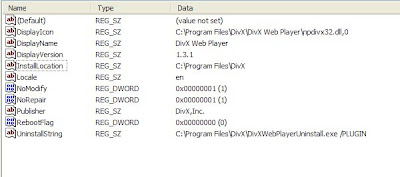
Disguise your apps in Add/Remove programs
For those of you that have *ahem* sensitive apps installed on your computer that you want hidden from the inquisitive eye, this tip is just what you need.
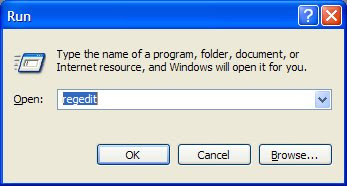
4. Navigate to HKEY_LOCAL_MACHINE\SOFTWARE\Microsoft\Windows\CurrentVersion\Uninstall.
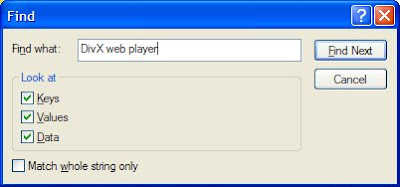
Link time!
Heres a fresh batch of extremely helpful computer tips and tricks. Just something to pass the time...
Default Password list - A massive list of Default passwords for basically any device you can think of. A definate bookmark.
Clean out a new computer of all the bloatware - A list of things to do to get the most out of a new computer, from deleting unnecessary bloatware to keyboard shortcuts.
How to download anything - A basic guide aimed at beginners in the torrent download world.
Choose the best search method - An excellent list of different types of search engines, and which are the ideal to use for shich situation.
20 free downloads you shouldnt live without - 20 free tools that will make your computer life easier.
Video - Google is better than Limewire for downloading MP3's - A great video showing how to find downloadable MP3s on Google with ease.
List of tutorial sites - A list of sites that teach you how to do stuff.
cl1p.net - Securely copy and paste between computers in a couple of easy steps.
Temporary spam box - You can create a temporary email address for sites that require authenicated logins, but you dont want the spam that comes with it.
Photoshop photo edits - Instructions for making your photos come out better with photoshop.
Dropboks - Simple, Secure online file storage.
Filehoo - Download freeware and shareware programs - Huge list!
GuerillaMail - Temporary, Disposable email address.
Make your USB key into a Digital swiss army knife.
IamUnblocked - Unblock websites with this proxy.
LostPassword - Password recovery software.
Online FLV convertor - Use this site to download any embedded / streaming video on almost any website.
Edu.PCMech - 20 steps for becoming a Technology Power User - PDF

Windows File manager under Vista
 Heres one for the old school techies amongst us: How to get Windows File manager working under Windows Vista.
If your anything like one of the people I work with, file manager is god, and windows explorer is a steaming, overloaded, slow pile of dog doo-doo. Ever since Windows XP stupidly (as he put it) skipped on File manager, he has been hating it ever since.
Long live NT4.
Its like an old dog, new tricks arent their speciality. There are quite a few different tools that have been omitted over the years due to Microshaft's wisdom (or lack of), and File manager is one of them. Ultimately powerful in the right hands, a mess for the inexperienced.
Anyway, heres something to ease your Vista pains: File manager in Vista.
How to hide a RAR file in a JPEG image!
Just came across this gem of an article, perfect for anyone wanting to hide some 'personal' material ;)
The following are step by step instructions on how to store and hide a RAR file in a JPEG image:
1. Place your RAR file and a JPEG file into the same directory, say, C:\stuff.
2. Open a Command prompt window. (Start > Run > cmd).
3. Navigate to the directory your RAR file is in, in this case, you would type cd c:\stuff
4. Type in the following command: copy /b input.jpg + input.rar ouput.jpg
Input.jpg is the image that you want displayed, input.rar is the file you want hidden, and output.jpg will be the name of the image file produced.
Done! When someone double-clicks the jpg, it will show as a normal image, but if you open it with winrar or a similar program, the RAR file will be displayed!
The below image is one I created. Simply save it to your computer, and open it with your image editing program first, then open it with a RAR program (Winrar etc) to see the magic!
Source: http://www.fiddyp.co.uk/how-to-hide-a-rar-in-a-jpeg-file/
As always, credit goes to the original author of this article.


